C# Tips
Haven't set up VS code yet?
See how to set up VS Code for Streamer.bot C# linting here: https://docs.streamer.bot/api/csharp/recipes/visual-studio-code
Recommendations
One of the ways to debug your C# code is to monitor the log while you run the action.
- Prefix each log entry with something you can filter the logs by
- I usually create my own private void Log methods that will prefix the log prefix
- You can use System.Reflection to get the current method name so you can pinpoint which method the log occurred
Recommendation Example
I usually set up a log prefix so I can find the log easily when reading the log file. I do this by declaring a const string that I can reuse for log methods.
using System;

//-------------------------------------------------//
#if EXTERNAL_EDITOR
public class Example : CPHInlineBase
#else
public class CPHInline
#endif
//-------------------------------------------------//
{
    const string EXTENSION_NAME = "Example Extension";
    const string LOG_PREFIX = $"{EXTENSION_NAME} Log: ";

    public bool Execute()
    {
        string methodName = $"{System.Reflection.MethodBase.GetCurrentMethod().Name}: "; // Used to append the method name when logging

        LogInfo($"{methodName}Trying to get %targetUserName%");

        // Break if %targetUserName% doesn't exist
        if (!CPH.TryGetArg("targetUserName", out string targetUserName))
        {
            LogError($"{methodName}%targetUserName% doesn't exist!");
            return false;
        }

        LogInfo($"{methodName}Found %targetUserName% contains '{targetUserName}'");
        return true;
    }

    private void LogError(string errorMessage)
    {
        CPH.LogError($"{EXTENSION_NAME}: {errorMessage}");
    }

    private void LogInfo(string infoMessage)
    {
        CPH.LogInfo($"{LOG_PREFIX}{infoMessage}");
    }

    private void LogDebug(string debugMessage)
    {
        CPH.LogDebug($"{LOG_PREFIX}{debugMessage}");
    }

    private void LogVerbose(string verboseMessage)
    {
        CPH.LogVerbose($"{LOG_PREFIX}{verboseMessage}");
    }
}
Reading the logs in real-time
There are different ways for you to read the log file. Usually you'll want to do this in real-time, which is known as file tailing. You can do it multiple ways. Here are some examples:
- PowerShell Script
- Windows
- Linux
This script can be run with PowerShell and will automatically display the log as it changes.
# Get the most recent log file from today
$dateToday = (Get-Date).ToString('yyyyMMdd')
$logFilePaths = Get-ChildItem -Path '.' -Recurse -Filter "log_$([regex]::Escape($dateToday))*.log"

if ($logFilePaths) {
    $logFile = $logFilePaths[0]
    Get-Content -Path $logFile.FullName -Tail 50 -Wait | ForEach-Object {
        if ($_ -match 'Log:') { Write-Host $_ -ForegroundColor Green }
        elseif ($_ -match 'FTL]') { Write-Host $_ -ForegroundColor Red }
        elseif ($_ -match 'ERR]') { Write-Host $_ -ForegroundColor Yellow }
        elseif ($_ -match 'WRN]') { Write-Host $_ -ForegroundColor Magenta }
        elseif ($_ -match 'VRB]') { Write-Host $_ -ForegroundColor DarkGray }
        elseif ($_ -match 'DBG]') { Write-Host $_ -ForegroundColor Cyan }
        elseif ($_ -match 'INF]') { Write-Host $_ -ForegroundColor Gray }
        else { Write-Host $_ -ForegroundColor White }
    }
    Start-Sleep -Milliseconds 2000
} else {
    Write-Host "No log file found from today"
}
- Notepad++ has a built-in function for tailing a log file
- (My personal preference) Windows PowerShell has a similar function to
tail -fcalledGet-Content. Read more here
The following is an import code for Streamer.bot which will automatically open today's log in PowerShell and automatically show new lines in real-time.
Opening Logs in PowerShell via Streamer.bot
Requirements
- Streamer.bot
- (optional) Windows Terminal
- (optional) PowerShell 7
Import Code
Download openLogInPowershell.sb file
U0JBRR+LCAAAAAAABADtfVlz4ziW7vuNmP/gyHm4DzPIwEKQRL9ZSmtLpzMtWYt1sx+wUWKKWlqbLXfUf58DUrKtNS1VLqq6Ux2ukriAwIdzvvOdQ0D97//4PxcX7/p2Kt/94+Lf7gt8Hci+ha/vPo/s4OJ62LmIBxdfhg92XOvaJHn338vL5GzaHY7dhdXhwHTj5xNzO57Ew4E7g9/T98HzCWMnehyPpsuTafvToZGL/zu5qE3HFp47fq+G04vk0EOH1dngUi8bGcySZHWuHw/i/qzfeH68O+nO/ZFe8c7ItWHKtI0JHPl/2ZGL1an0dGxcH5XQJvI0RVpQgjxiIxSqwCDpSWtUIKUK9Kpz6W3/mtmZXe9YetwOpEqsa3M6ntm1M486mRlbGA/7pXgyHY4XcFEkk8m+q77YgYkHnV1X7Z26iUPxAr+/yA+NXetwZzycjfbfs3atTB7kYgL473r2WA7MsP88M1vn9XCgZ+OxHUx3nZ2O404Hnumm459rz9yepo2peoPRXszXLPH5rg2L3Do/tpGFHmu79fz0dP4fX782Yxj2w+Tr10+xHg8nw2j6/ubq7uvXwhh69DAc93zv69e59x6/Z5gR8fVrf6KH4yRW7806un+mzdpiMrX9tMX1Bv+5OSK1mNrUBmC4pnUzUn3dqbPqot0sTNut8uy+L/B1kpuYphmpmFfUoJrofrt7T+vBh9sR0TSZtRe5O9u6we0m3nVsVquHO49Xi0m3Tflcs+ronn3aec0tFRNVbHwzxWSuBp9mVdqYtVuV0f3T5CY/aDzJJh+UCzcc2khUjdfbrS7+/IA/vowleTLFxvQ6qSa2dDur9xsD03zs6l7D06VKohlcR/nT63vu+g1mimKmqeibPP8I/52589C/B9OsTGTzU+eeQhvsU+eW5Mq1JodjPIHzMIZhp5y/hPNwP7vtQL8WaR+vHr9Uibit9xrFWqPT+VK7jO9YLlFx7pOiuiObXqdeFAzGdieLjYnKp8f9cr783Cb0d2T6Bdyu5T5JwOdL6QbrPuD15MH9ZqZYJbltVQYa3wBW1S48Nx3Pl1oOMINxFQGLD49PBtqB4/+1atfC2Nx/l39xi4gnxRoLmOP4+nL9HDwXML7B5fjhJh8/H++UB26cZgD9r7Tz5cmq7eyv4vo5aNPG4q4PdlXbf/6WwviaZq4Hva1nw9jBDrf7pGk1b1pVDPPYMM2kt923m97toIHdnNaat1v33zdvsGwePren34npN2amcDM3rcq3HecXpslnbv5v3/CMequRmGajd9u6jVftRHdg553l9aXcQrbaXVOsd8B3Mp/oFxb27nlOJ+VXNnHvfIdVntJr85eiXOSJWeSu5PJ5960Kf7ahxcOzrX6Ju3dZe+aDouQBrkt0zL/ofhWOFSa1la3RwlO71ltinQvWxl6adMr9ygTGNob56JR7q885sT7+XAA4MVlMsMMPPreWnztRbX0e7eIytk3wDfCTtM0kSVTxcW4Wu6+97z+SZZt5VWoke57dg/GNX1175b7fZt93ttuGsbebXnwNc1ddfi6X8GR7/NWu7k8Hut8AP39p+/A9N/x+2fYtS7pw3+4+FAsLSV+urbrvOPu+s90BPDOf9qHWBhs80N+FO//cJknv29kH1SwM2k2O7zPcbu6bJnG8cwjnjXtSPO5eju3Du2uz60u6X+CH2n917Qpr9/1VuzmRcfmKUxuxAv8oFytzRR86KSf3HudtnMzW+LhgRqbYBX94nOu4M9rDnfPrRcbn7X4yAZ7u676YlkvVOcwXr0C8gP/i9u1a3+l9q9y574Mv1asjsBXwa7GwNfDXq8KDvqrOATMXez8AxywcTtWimN43k9l1r9LVtHElwT/vWdVx5oYPrnw715fNx0SlHAbt5m9hzGLQYlPAqJo0igkc558V075tJdzWyU27WBXXfcBhUd7XJvBCdVj+gCFuFbDMc8cVsYuDH4tb/XLzMVHUPDm/TbFp8q5q1kev5yL7C+flK4hfrRzYYr1z7+LZIkfh71uK/eAm5a/1PrW7Os4NIf4MYS4HslR9cv1SEMfLV05bVF2M70I/whXHXedzz3HwY2E5Jrx6bmNx3ROLdjGZ3TcfK6lG6Tc+3Lduko+Oj1/Z5/UiTDXA9dJm2v1wWMlXgrsrUWqRXK1ab1eaJRLUBtB2z8XldqIHoEMg1slmYSJbo+SOVv7VhjF9BH9rs0+T8lUbnke6puT4VkPsEbN2LRHleHN+qwu7bkvr57NjfcfVwL3Dcr6b2ppk7YcyjK2cPW+0454d7byMd8X/5WI1afcLRJVuO6sYls5FP+kCnyZ63Tde/opJH/oyWuKa033zBDpvZopg56ltOVsCPgAb14vu2AwuZzXa4B9ruTC63NNm1u/VnM5qrZvPoPMmd6xSgDnFtpa108g0xKxRFMsYp4cfa71OVNrQDJt/9ZvbWp7X9SAptVtV6LMeOhyve9PE1h46oJfwK9/ogUZyvtxL9Ssr78A4+4MxBeViqtdGatBIPi9yAq7d05fcqB1fDtfj+nOfmmCrELO6m8+elIuCmBdslrqgPPp4uwfL0uQgFtL5WPER5q+LNZk+z0/LcYsbC/DX531z/8KTH+pXndkd8BDo575adHrlwfTTHTZRvVApVHvJPXzoOR9c8heGfAS4QyzKeRM8Y9/CA8ev7tgSF1FZlEd7n1/C22PbOBat+9Q34LlvMn85rLa639pgS6mdFxvex+/73vMYq8DdgLnjhoIt3iTa+Tb1/HIJxpDnNzBnTy5+RrXdfYf5xMD/8Nx2V5VukvVrtm1GNu87H/OF9PmNUoVD3oRdbvAxXwGeBM4HjoPc7inVPJl9xArwKxfBL4uNJsS9WDHgu2d999p/169xXAs8MNFpTvgKg9TPO92UHxPgqrpJzBVwzqITgw31IN4l94PGwMWE1H+WMfj1uQPPv2o3K6S9cDb3gsmOuPB0Hz9r35WuzUOeMIE2Fh/zWzEzvu5B3C1CnpkHm+xBn/Mk5SMXe8t5cpvGPbA37eJeCewvT+rAVZPyh/oDfG7BZ7zk6rW+Q/6ygL6OVAly6MGnvXnZVp8yvtyYt124PLc9u21WezDXzTpkQ5sxK7WNNQzf1NbVbU9nbXXWbC/lJBfTIc9eaMfdDHKi/OV/lT9cjjY05g7fW9MT4ONg42BPz3G6N5pDbjwsDx5Ak654oPK0OaadcxfnwnLBDOH65LouYum0FfgpaMpea3E5VX2BQVvhe9rpVMijbpKpbRUeTas2HH55GqXz68akBnjUJFy3CsR8TB51q6Y7UQtv4ep4Y8e87fJByNseeZ125wY/wpw3NuLfNmc7vVZdYrzTJ9489moENjqRzWlSzut/Wep0y2qu8b8qjIhdtqtpeXbbyj2AD4AtgJ7O54rAtQWnK163X85v8teKV9oj0G7YzS2MibQ3sHO83m4WUp7N/GRKNdiW2tB1b+DcTONAPDIU2kzzXtcWv263eq7+86CKBcjVO3HF4ZyHzGhPvMj6kcUz1+805iSOaxrJruszv8rGuSu22r0xaWPu+ilvZja6sk82HbdbCQPMe1FNjyBuBDC/Cwn6/brenbtaU6UQdq7rTjs2IOcURPWry3wl9xwbyyWyrSPzr+chWbi2gJv6oCeeNudpbwyFHAn4f59uAQ7mOV2C3Kp/CzEQ4rhru/mLx+n6vYO71vTM8fy16XeJi0Un9jvTdIVJbGgX8s163GoRsa0J0nj/fey3+7bTZ+0i1wIOxu0aKUM8hxiXcoS7NoF8em7A55dasmNp5g8ap3mVKg/M0I2xnJDXmB/mju3xfF8LNnJzAzkTcGaiig9OwzqbmbU/DDuW3cQ72rwFjL85XXWd3GDIIzHw7oNiBnjuZgj2N7nuN7xU/zickuq8vow5EH8321qAvia6721w12vdlXupDffFXMGYYJ67wNfFZcxK2lcun95XO/gldQCsaLVrlzUAi6uuf3XZJMl1j8/N04i7/P+uTnrtEo43MHiORa/yd1fHBr6CcRERQH97963k99QNDmhN0G4T27gZwtx/cs/ZqI87XTE3rVe1+pX2iXvf9/+rNC/8BH0s6EHF1Ya2bbfW+E68r3faRZFo6g3AHxPr9OBWHF360vfzgF2YfwOMwVZ4z+EOOQjki7fTrA8p102zubgcWJYDm+hCDvVW/bChHb5t6cNnP3T1a0Uh92Ev2rdeqszvaeNJg19sjOVh038zbuDOn5K751rWTp/esL3n587Ax7t6UK2ofnsO3Lhos8bU+ZJeLHPXJulCjHrb/Unjqd3Ingu5IdhsA6d92j03+8ZTazeX/l6A4zBHcK53B23pUmOvXtLPuPE7sKOFyW/h96IdX7W1cd/M1ZHbV6A1SznQm64vhV6jKAouTm/q21f3pjlOFTQbjHu0evYO7XuoHgM+V30Avxu9NY9O/YdU5/etG3wH2l0226N7Wkjz8Y/AZ2DPD7aWe+Hb7B1axxTD9J1e+QpsFWKqq23f9UPQ1OAbrU9Oe0Isvt3S82/27zqfl4uZX8Pcp/Fyt8Z6iSM78+VtffIyh03Rc+MFW1mN7/M98HbKo6An2q3OK23bXdVLJuWry7hV+pSOubWlc3NTiAcj4FWITUs/7q14PQe2YFxtotZu5dy7G+BnMm/DvMpmo7fKRTI/fOjc5iuq1b+a2t7VtPntcvq5EU5baR1+O/9Ma6auJul0Q/Eqq9MW07npGJoAD+WwhM+rnLLdvE3znxXG63bm7mvMVlhUsngRWZbV3KOGCPZhF9U4XKs349wPi0+HfPEV94o018v8rw58PXX5f1oHL1QS6Dtt13IT55dpPgwxytUa0jhVyrSXBs6+39B/1fT9A890Xb0wUYX0/fcwrVnkH3b0Y1MzvHAeaNInXXQ1hy2OeYNfVkBP53h5ZV/9Rq+c6iDQIovcZxcDsr46W7mNs8855vrt+pXW9krTdE6ixuOsnr6zd+/dq7W7/DR3V7gd3+XTtuY6u37o8MrewYi0xrOdB1QSU4K8Ps5hPXiVy732P5iP+/7j6H6xzF+vHrvg19/k79dwZ/0uZ5fNP2t1Z+tXl6fX1L7tqGNdbdflUz26qmnE27WU9qE6yosG6Hx8SvnkdB30qu3nd0SkDT4AcYTWd70n+nTfAi6DPNjlQp/jF932OcsRMxxL27Wn+rYeiHX2/vIpW0/CQVe62PfS5lZ8X2nLUnVhmi+xydW13N/WcqjR2OphfxQndnsd23I9VSIXtakc71rjlV4xkXNbtZNZMr0bNuQ4dqviDl27dtX2Aq1slZ4OQ0Z4yBELqEJeSClSVhoUeUpp4wlf+OHWrQ827nRdP/F7vHluuhi55wn3z+a51YK5jRV+6bm9q/yyzg6MfXQPfH38j5cvO9a9Fd3DthfF6WGSyNHEmlfnV6f/eL5wezkjJSHgZDkyHBPk+TxCYUAZMmFkqfSDMBL4r7Ockcj3F+W1I4U4mdox9OvMVzgeWsk4X9q7u/Dff+w2eI/6hGouEA18MHgvEkhEQiAvgqM+gT9Ltgx+adQBpseZbTpXk9UizH++3XjfPNSb5Tx3Y2MbdqyGE7vV+7lMUkt8dwdd3Drr1gXfZePbSSUZbFhgQ7CNkK+4BfNXHCk/0IjoQLMwYJGx3ik8QSjbxxLvMpO8qNnpFKx8stX8C/a7O76TM/77WFQ/WDXr/BRMmYqsCoBxA0YkGKAC7qVaI2wolVr43GP+mWJKTsd0OEgWte7w4Toe2El+OJjKeOBIbC/CQDv/OBFhiG6ShBEGMxVgtZQSJBVXSEbCB9b2lC/o70P4UKCjxwC8BEolUve2ngcBL9tr8J84/WePEMBUK+6HFNGIAVQgfJAIpUA6hMPCY5qp7VvfAhXGe3XAu7zr24XuDmO3TvxHSIK3IfXQjafbXvuM1B6IwkD6zEQUYS/wwF9xAKHDYuRZroQwkfJCc5YQHeWtS4gWEN+HDwesKQ//7LUmS/yIRtYg35MUZKUKUejDJ0Z9BSE3kh5jZwnVaX63IwSsu12hsAcoiJu+gQiKfBaAHOEiREIzjKzytefhKLT2PG2KnQCUkePeG8AS2wJsGTBlFAhtwAEt4ORRpVEYBRaBNvGJ1Vgatt32OYDlnQBWZ2zt4CBShcJe/yNRBHmdAHwUdlSlIOZ5VqNAU0UjYSMP67NEip9oVt9Baw9MPlbgfpACKE9ECKiKIsFDAExDOucRgUE+nCVM/gkw6YX8nj3tpalAUA2MThA3IUdA3gyFlBOkTBBp3xchl9tbxM4BqOBEe/ouWLlCbh9Y1hIjQGIiiyFN8jyhQCcohrwgCgI4FJjopJrKTwcrPAGs8Y749IKTo6i9JAWK0lphFYKcG2IfDQQKrfaQJqA3I2aIr/lZ4iRONKrDWIncIXkeMu1pXyIQ4iColOdDJgNZIzaepyNisWHRWWJFTtHnfdmxkBh+x7D2spWvWaQJxDxhmABRZTBSQkfwNQh56HPG/DMF6xSl7izr+4BdhhhfbtNOBpgMeRAwxlEoMcRBE2okLXAXN0SKKIyMIKflyT8dsFP0emcsF4cSG+z+t0+v0ygIbagQE1oizwflLhWERCI55aDhmX+uSJ0q2L+Dlk/c//agZRTITcYihEPPQPyToBjcTwIQGgaRglTQp+fJ8OQUxX4/nF1oObhIwblIXH0LPq8KXBfyomcXD8OxuXiIp134OhlZHUexNdkdR6tXj7BAhEZC1BQQExgYpPJYgBSkQ5JgLY3ZZoQfg67bB38x+XMlrlMCQ81OL6Zde7EqKl649xwX0+GFsunxFcILmIoHOZi6U10YcOIGnV7x0B3CbW5yjsYbkxDyBKlQGALKnoo84EtXtBUWbJxCzmV+Vq7+I/A+Jba84A0HHJjuS2bfOyE+vqaGPSyswIhCBo8gRTVI+J5AxhIVeNJVkX5WovojMD0l/DhML8edWR8i9iSFzo4vZiNghSS56Mq5vRiN4+E4nh6g3T1ochUSFnKB/JAAI+AoQtJwHz5hFVksrabnjOZRIWr9rULh7vqf+18h7BLeb3yD4DMtbOAjH7s3CFwCooxypLlmxhdKEO+0ktOBNwg/DtCjotg6oFfV6gFA91SH34ap0phYGVjkG+3eyvAQicABqyURPgFjo6cVh38JpkdVqNYxbVZvDmC6T8O/DVTKDVMEiDSMiAtO0kNK2RAxTji1lrr4dL6gHlXPWge1Uc0dAHWvgn0bqqHwNfg4QwRwABoF4R96EiMeBVjbiMnQnkaovwTVo4pf66h+yBUPoLq72vo2SMHBWRSJCIUCbNRTjAKj+h4iHia+kNyCsDpfSI8qka1DWr4pHIB09yvJt0EqjYqE0j4ymjtIPQ8JnFaINDYBJ4rjMw5SR1TT7KPVs+xXuMqnL1/r22l3mN7uljVdDzvlwcvvnTUhN8vvTMfGs8HnQT2+647hCfsm5Kcs0vN9Y4DVOehjEbjXzQyFMEwU8EATPyCC+CctvnFr9MK9M3yVgf1DsruXLwdX6h2a+yUULIRgpj1k/cCAqQcSCQsCQoPEtQE4gcePY4/VQrnvLdvIVrDt9cPjc9psPIJEEgfcIu4x57qcI6GID2HbKms55ZIc9wZqNZ7DVZC3jeaIjHGZf/iCSSMI0A+LkOdBJqJ8sFYvIpGWmmFqjlvRtD6aw2zztjEdkbEtxySNNYaBsWFOnLACimFMIy8wRhrtG2KOq/itxrTPv942DvYW/9qx2PX1bW8b26u2Vx8PLZSNhBcBQQqI7+4lvcEQjBR8IkQAJ+NAEbWmcc97oSx1v/s5Wjwvj00vmQ4vbuyDO3b2Pwj6FoFyaLmsb2E2tVvzxANXR+ARUoSCW4NWiwQNQMltW/A5Lpddyqw8BO+pnVzI9JdyI5hBN0eL4WycHRgmxh5fiSWUc+xej0c+A5SsZ5HCkiMf/i0kUzQ4LUAfqrv8qEX0R2nYX7l4E4dSa6MMIm4xohcSiyTlCtkAh4xjTzB62mv0/ar2dEyPCJU/WsRmJr0iKAD8jJQrBeaHOKBRZN2LRd/TIAgsRTpSvuSBITY6Kdn7CypXEQRKGl8jHsG/PB8MOwyMQoYrChI2MAwfxxE/RkfQt4z2ezriTWM7UkdQ7AuBKUcmiIBTfd8HHQENB77l2nK3Itn76+gI8v7i82D9p9qzzV5/Yf2wrOZKTzPjYp+k4OICu7kPBAqkUwvCUq63a5rPCsHf76M7zfbvs6NGKhqBPuAQ1LQLb9Qi4WGCuORM+FIJbn940ebvvqNGC5/JQEXIDwxwBiEBkpHPkVUiYpb5lEanrTf43x01qxUdniIhDgUSDEzXCz2OQk0k0iHoMWEZ9ey5IvzLt9QIraWvwAa5DNyWUS9EYagUosQjPFA8FOaHZwV/sS01IA3cGqEACS3AnCL3/opHGlnDg0hFTIc70stzgOjXb6kBhELBIw+BiDYAlZFIRRwjzsLQ9zzl4TPdffSrt9QYyCoCyTnCBLsgEIRIeW7pug/5pFBE+t55Lur/HVtqbKQDTD2gJy1BuVNfutwzRJJERAJ0gXem2/5++ZYaJayNiBHIrS0GpCwot4AHSHsBDn1fCnJkpf7vuaWGyAgbH4euFOaWfIbuZYAA09I+0YTZiO5IB84Bpl+9pcat3KTGJ0gyZd27Eg+pEAgrCrSwxmNYH1kP+DtvqVGhZoL4AQh7B5bWFAlBwAOjIKSUKBPq/91S4+icRQqDAyIFkc55n0aCEoy0pMr42tUZz1Mk/IYtNdREkkoiEGauwEStj8KAUaSMZ2iocXi227l/w5YaQ6jvBZ50q3acYVGKpG8CoCzPEBNRYaLTfqvi77qlhnLqi8j4SIRYIE9QAcmfDREJJdOBbzxOxHkC9qu31FDf+pFPMQqY2y4ZKI0kBbgMDyHJkTSy+jz3lv6WLTU8sNJjEmRoCFrdI4Yh5fsGYaVDLUBKGF+dJ1p/hS01RGPBfIgJzHfpUMBCJAy3CEdR4MvIM2F4zgvo/4JbarAEbHwEwiVCHoes3S2pRYp5NAiMHwbqZ4WVv+2WGuobTSFtRxH1XE3NA10jsESU+Nhwz3AuftZvr/wNt9RIyXFkKEMsLZAoL0IqUAQRS1UAER1i1s8qkPzmLTU73xL8gC01rrILVogR4xFFni8IConliDBJrOFCiuA0ZXTuW2p+1h4lz1fKvZVBUjupaSIL6R/GYKeR25KswjA44+Xff2I/zU/coxREJuCGhIiZANzeM9rtsnUkGirBJYgwe8ZG+ie20/zMPUqh5JYG1EDqSAzybGhRGCmDjId9qhX2mThjUP/EbpqfukfJmCiQMuDIGLfJHkegWS2TSEc6JEK5/5/zH/4jh2exoebn7VFSnlAyYiCcjAVImQ8pqW9BA3CPYE8G2j9xV/K5bag5bo/SnzFSoqygJnRrXBQYKcT70JMRItT9dI0l0sjT0tZfgugxFbf/T/coEaxsSNwPqGGTLoGOkOSBQIKCrFPMLYw+SSf/BVd6as9Iw7hGnGvufn7Id3vGQ2Qg/oUewwGVx+mx371HSXIaRcZDRGnm9mt7wIauShdJ4/k+B4V0HBv+1j1KkLJFmocaGbe41AuA5ZUxAXKbpJnwXXZ83AqmM9ijhCmRUmvIAChEKc8HdgFFoBDX1O3C8SThx7HrGe1RetPYXrW9+rh83upZ2fLgtf8/AHh0vw8DWT/4YNVkqHt2WrPj+XIV7PbJfBK7WsPayWncX13vjmQT9861kS3DJSQ7Yh9Hw/HUGreiOJ299/T9MgK868eDuD/rN55vSs96EDGm8r0P4/zjfwBxxHw3eYoAAA==
Usage
In the the action Open Log in Powershell 1. On Streamer.bot Start, by default is configured to color code the PowerShell window based on the log level of each line as you can see in this screenshot:
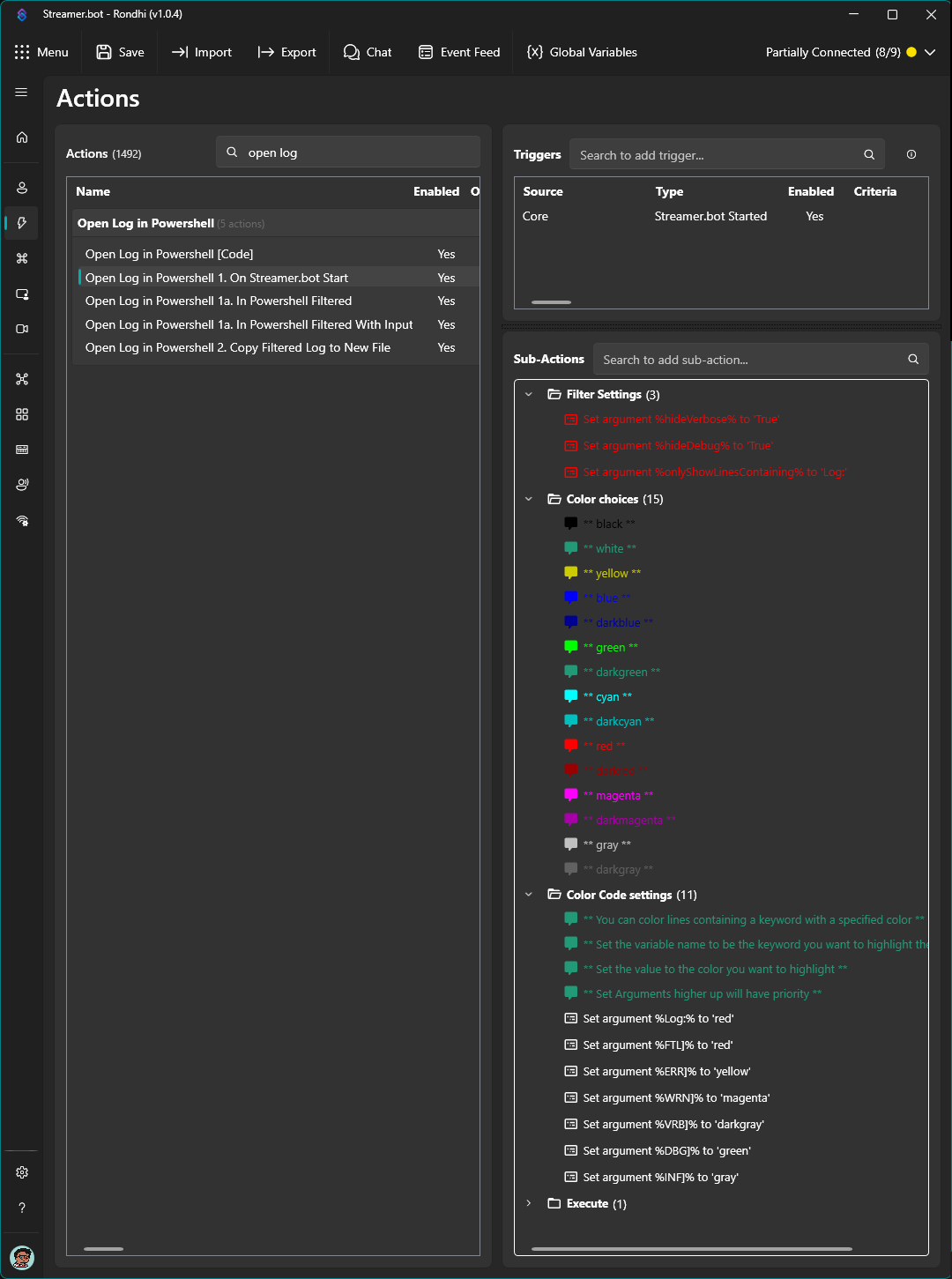
Color Configuration
PowerShell can display colors found in this article: PowerShell Write-Host ForegroundColor parameter
However, if you desire, you can add Set Argument sub-actions to designate certain keywords and color code lines containing the keyword. Set Argument sub-actions higher up in the order will have higher priority and will be that color first.
There are a couple different methods of watching the log file in Linux:
- You can file tail a log using
tail -fin a terminal - Install PowerShell (pwsh) and use Get-Content or use the following bash script:
#!/bin/pwsh

# Get the most recent log file from today
$dateToday = (Get-Date).ToString('yyyyMMdd')
$logFilePaths = Get-ChildItem -Path '.' -Recurse -Filter "log_$([regex]::Escape($dateToday))*.log"

if ($logFilePaths) {
    $logFile = $logFilePaths[0]
    Get-Content -Path $logFile.FullName -Tail 50 -Wait | ForEach-Object {
        if ($_ -match 'Log:') { Write-Host $_ -ForegroundColor Green }
        elseif ($_ -match 'FTL]') { Write-Host $_ -ForegroundColor Red }
        elseif ($_ -match 'ERR]') { Write-Host $_ -ForegroundColor Yellow }
        elseif ($_ -match 'WRN]') { Write-Host $_ -ForegroundColor Magenta }
        elseif ($_ -match 'VRB]') { Write-Host $_ -ForegroundColor DarkGray }
        elseif ($_ -match 'DBG]') { Write-Host $_ -ForegroundColor Cyan }
        elseif ($_ -match 'INF]') { Write-Host $_ -ForegroundColor Gray }
        else { Write-Host $_ -ForegroundColor White }
    }
} else {
    Write-Host "No log file found from today"
}